Graphical User Interface
Set up a custom dataset
Click on the
Datasetsnavigation button in the left menu.Click on the
Add custom datasetbutton at the top of the page.In the
Namesection, enter the name of your dataset. It should be unique.Choose the type of the dataset in section
Type.Custom code– it allows to create your own custom dataset.CSV file (last column will be treated as class column)- it allows to use a file with your own dataset. If you chose this option, you should set a path to the file on your computer in thePathinput.KEEL files (should have KEEL datasets structure)- it allows to use files with KEEL datasets structure. If you chose this option, you should set a directory to the KEEL files on your computer in thePathinput.
Click on the
Savebutton in the lower right corner of the page.
Note
Selecting at least one dataset is required.
Set up a custom classifier
Click on the
Classifiersnavigation button in the left menu.Click on the
Add custom classifierbutton at the top of the page.In the
Namesection, enter the name of your classifier. It should be unique.Choose the type of the classifier in section
Type.Batch learning– represents the training of machine learning models in a batch manner. The system is not capable of learning incrementally.Incremental learning- model learns and enhances its knowledge progressively, without forgetting previously acquired information.
Click on the
Savebutton in the lower right corner of the page.
Note
Implemented classifier should have a similar interface to those provided by the Scikit-learn library. Please do not change the class declaration. Selecting at least two classifiers is required.
Set up a custom metric
Click on the
Metricsnavigation button in the left menu.Click on the
Add custom metricbutton at the top of the page.In the
Namesection, enter the name of your metric. It should be unique.Choose the type of the metric in section
Type.Batch learning– metric prepared for non-incremental datasets.Incremental learning- metric prepared for incremental datasets.
Click on the
Savebutton in the lower right corner of the page.
Note
Implemented evaluation metrics should have a similar interface to those provided by the Scikit-learn library. Please do not change the function declaration. Selecting at least one metric is required.
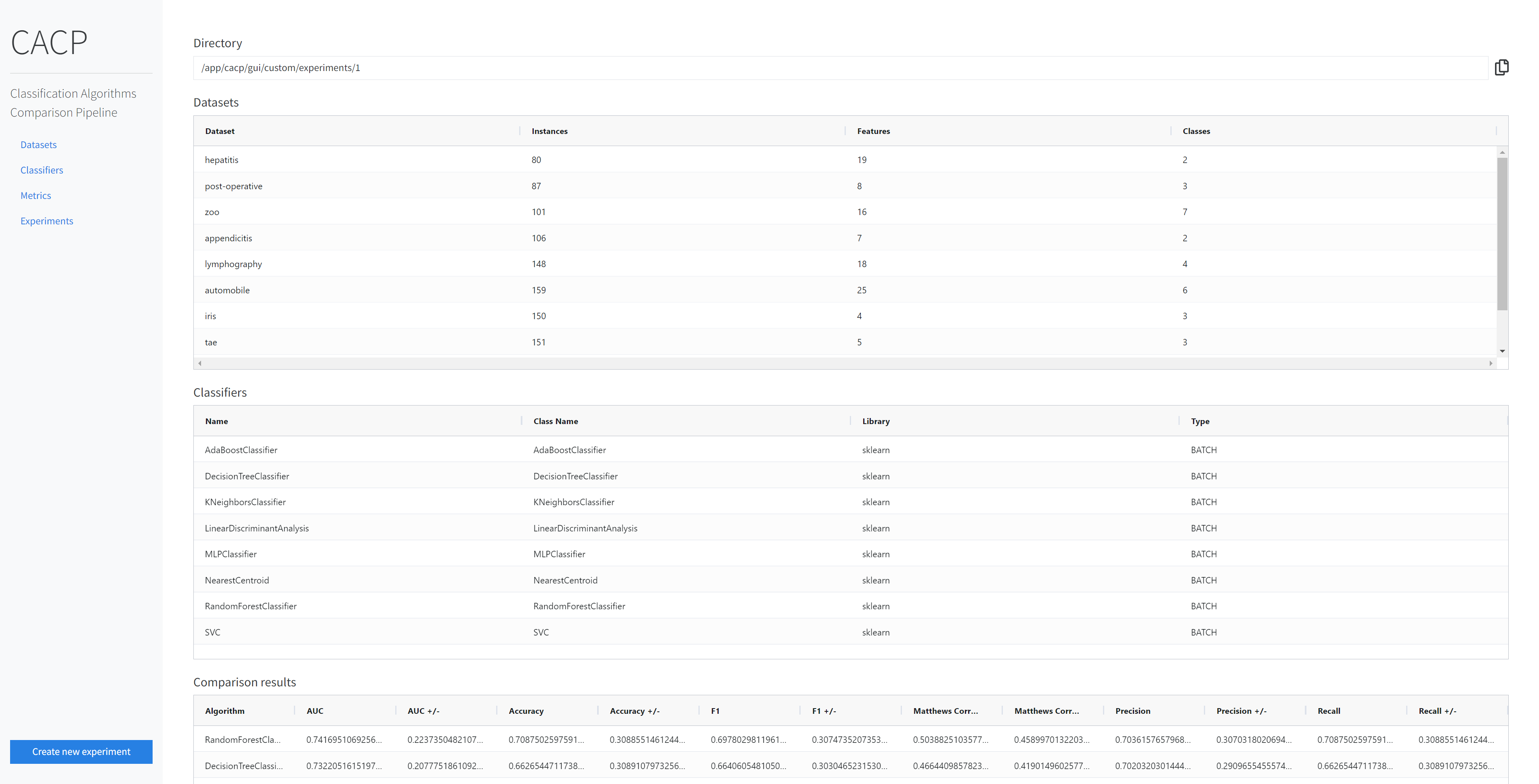
Create a new experiment
Click on the
Create new experimentbutton in the lower left corner of the page.In the
Namesection, enter the name of your experiment. It should be unique.Choose the type of the experiment in the
Typesection.Batch learning– prepare an experiment for machine learning models learned in a batch manner.Incremental learning- model learns and enhances its knowledge progressively.
Select datasets for your experiment.
If you want to add a custom dataset, click on the
Add custom datasetbutton and select the appropriate dataset in the modal window.If you want to add a KEEL dataset, click on the
Add KEEL datasetbutton and select the appropriate dataset in the modal window.If you creating an incremental learning experiment, you can also add dataset from River clicking on
Add River dataset.
You can add all datasets at once by clicking on
Submit all using default propertiesor add them one at a time. It is also possible to remove the selected dataset from theSelected datasetssection clicking on theDeletebutton.Select classifiers for your experiment.
If you want to add custom classifier, click on the
Add custom classifiersbutton and select the appropriate classifier in the modal window.If you creating a batch learning experiment, you can choose classifiers from the Scikit-learn library for your comparisons. Click on the
Add Sklearn classifierbutton and select the appropriate classifier in the modal window.If you creating an incremental learning experiment, you can choose classifiers from the River library for your comparisons. Click on the
Add River classifierbutton and select the appropriate classifier in the modal window.
You can add all classifiers at once by clicking on
Submit all using default propertiesor add them one at a time adjust its parameters individually. It is also possible to remove the selected classifier from theSelected classifierssection clicking on theDeletebutton.Select metrics for your experiment.
If you want to add custom metric, click on the
Add custom metricbutton and select the appropriate metric in the modal window.If you creating a batch learning experiment, you can choose metrics from the Scikit-learn library for your comparisons. Click on the
Add Sklearn metricbutton and select the appropriate metric in the modal window.If you creating an incremental learning experiment, you can choose metrics from the River library for your comparisons. Click on the
Add River metricbutton and select the appropriate metric in the modal window.
You can add all metrics at once by clicking on
Submit all using default propertiesor add them one at a time. It is also possible to remove the selected metric from theSelected metricssection using theDeletebutton.Click on the
Createbutton and wait for the experiment to complete.Once your experiment is complete, you can view the results by clicking on the
Experimentnavigation button in the left menu and clicking on theOpenbutton in the row of the selected experiment. To delete the results of a performed experiment, click on theDeletebutton on the selected experiment.